 moonka
First steps
Your little route
You do not need to learn everything in one evening. Start with one entry and explore the rest whenever you feel like it.
 Today
Today
Your cycle day, phase, calendar, daily tip, and an overview of mood and energy.
 Journal
Mood, energy, symptoms and short notes for a chosen day. Moonka’s home and your contraception card are here too.
 Phases
Four seasons of your cycle, with movement, food and everyday ideas for each.
 Wellness
Breathing, meditation, body awareness, personal notes and gratitude letters.
 Settings
Cycle details, reminders, language, theme, PIN, PDF reports and subscription.
First steps
Shall we get acquainted?
On your first visit, Moonka helps you set up cycle tracking, contraception and notifications. You can update the details later.
1. Recall the first day
Enter the first day of your last period. If you cannot remember, leave the date unknown and add it when you have accurate information.
2. Set your rhythm
Choose your usual cycle and period lengths. A cycle runs from the first day of one period to the first day of the next.
3. Add what you need
Set up contraception and reminders if you want them. You can allow iOS notifications later.
4. Read the terms
Review privacy, the limits of predictions, and subscription access. Check the price and any trial offer on Apple’s confirmation screen.
Your cycle
Today: a moment for yourself
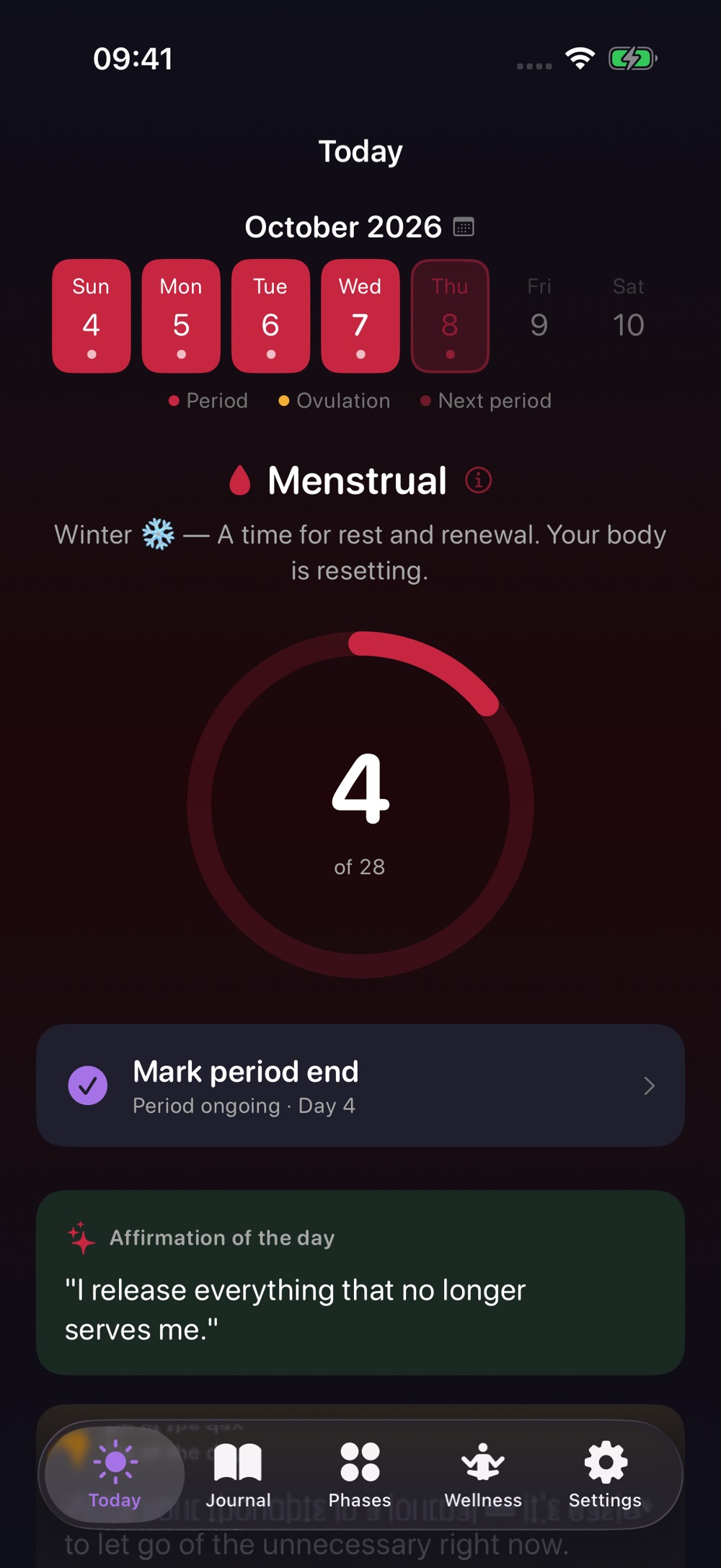
One page to find your place in the cycle and choose a small action for the day.
1. Look at the ring
The number in the middle is your cycle day. Tap the ring to read what its indicators mean.
2. Open the phase
The name and season show your current phase. Tap the information card to learn more.
3. Record your period
Tap “Mark period start” and check the date. When your period ends, record the last day of bleeding.
4. Scroll down
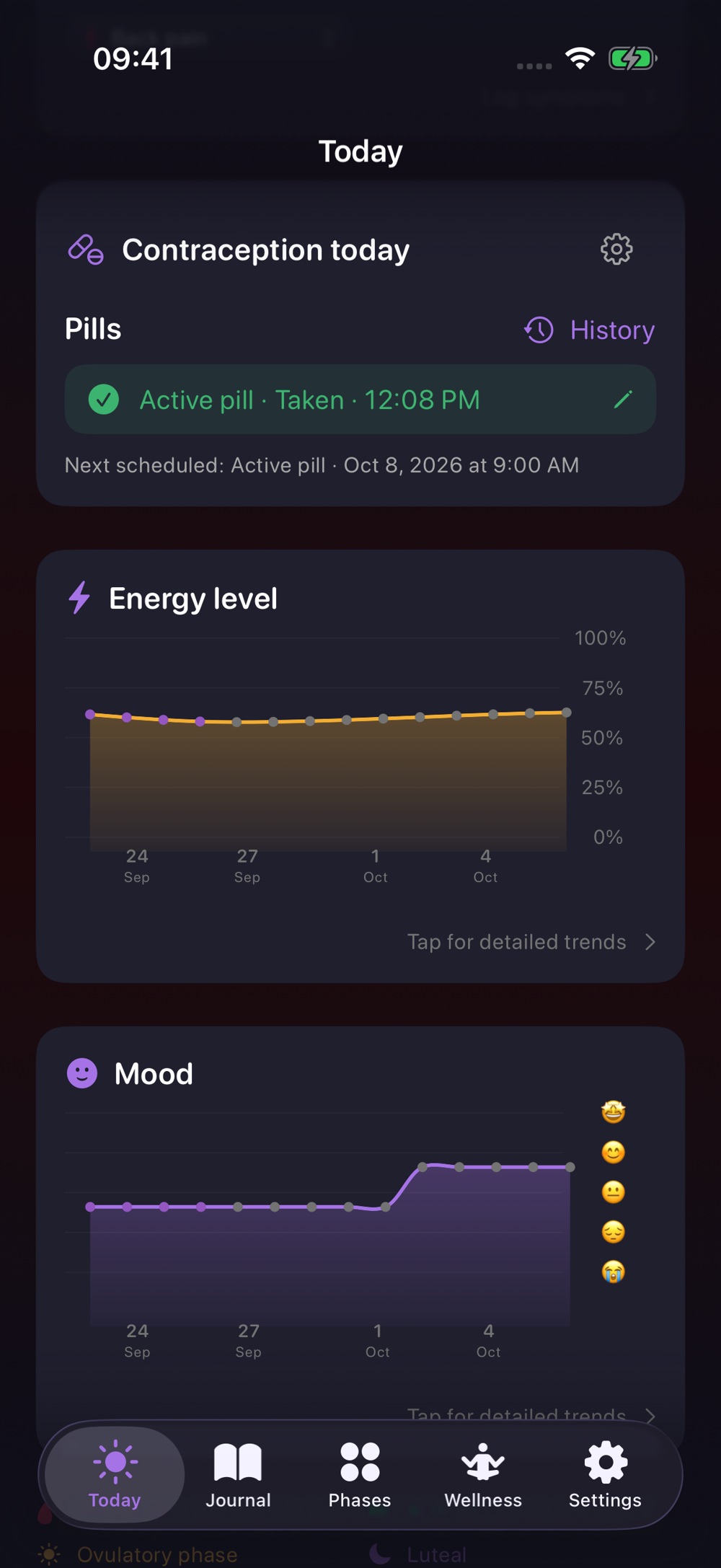
Find a daily tip, a typical hormone pattern, a fertility forecast, contraception and charts of your own entries.
Your cycle
A calendar without confusion
Forgot to record a period, or chose the wrong date? You can add to and correct your history.
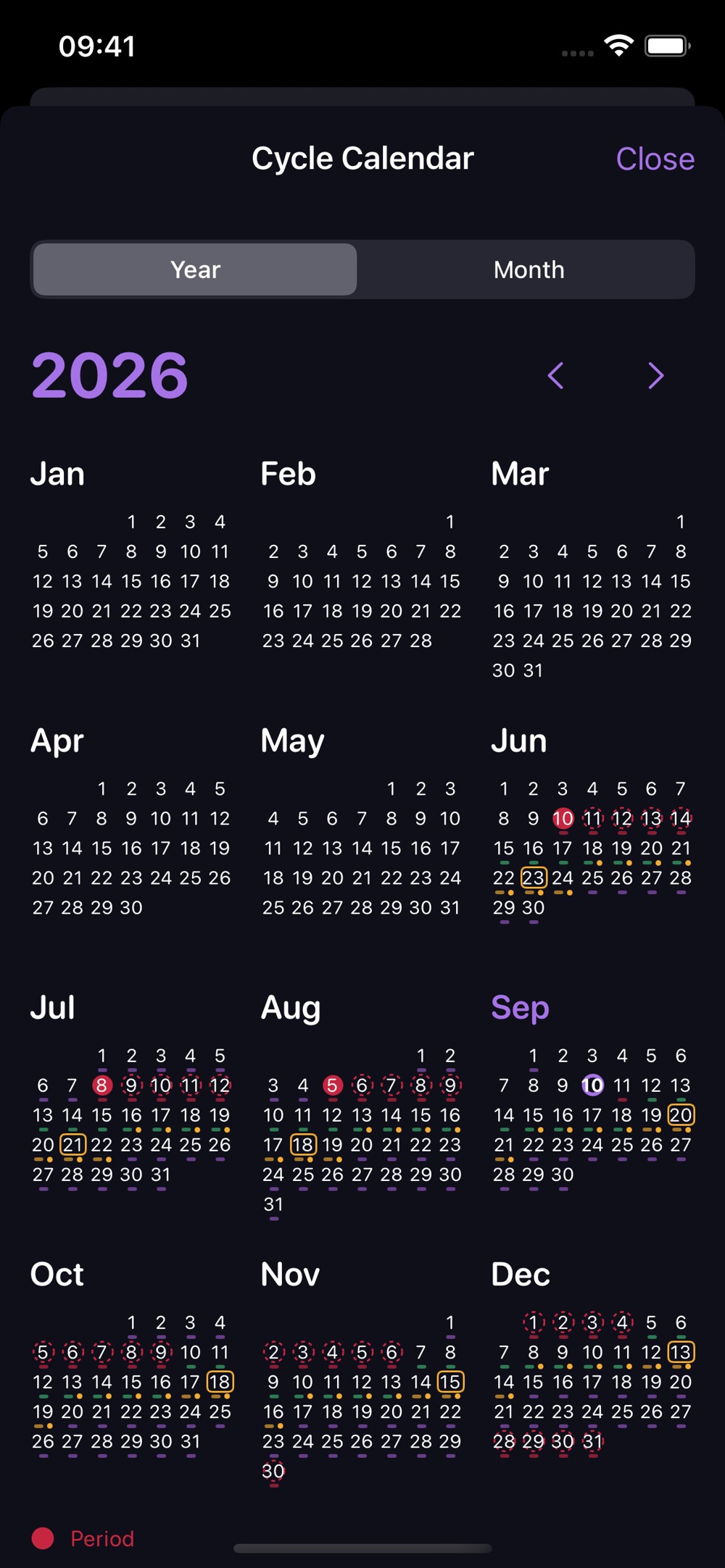
1. Open the calendar
In Today, tap the calendar beside the month or a date in the strip. Choose Month or Year view.
2. Add a past start date
Find the right month and day. Confirm the first day of your period. Do not create a future entry.
3. Correct the dates
Tap an existing entry and choose “Change dates”. You can also delete a mistaken entry after confirmation.
4. Tell the calendars apart
In Today, you edit period history. In Journal, you choose the day for a wellbeing entry; that calendar does not change period history.
How you feel
How are you today?
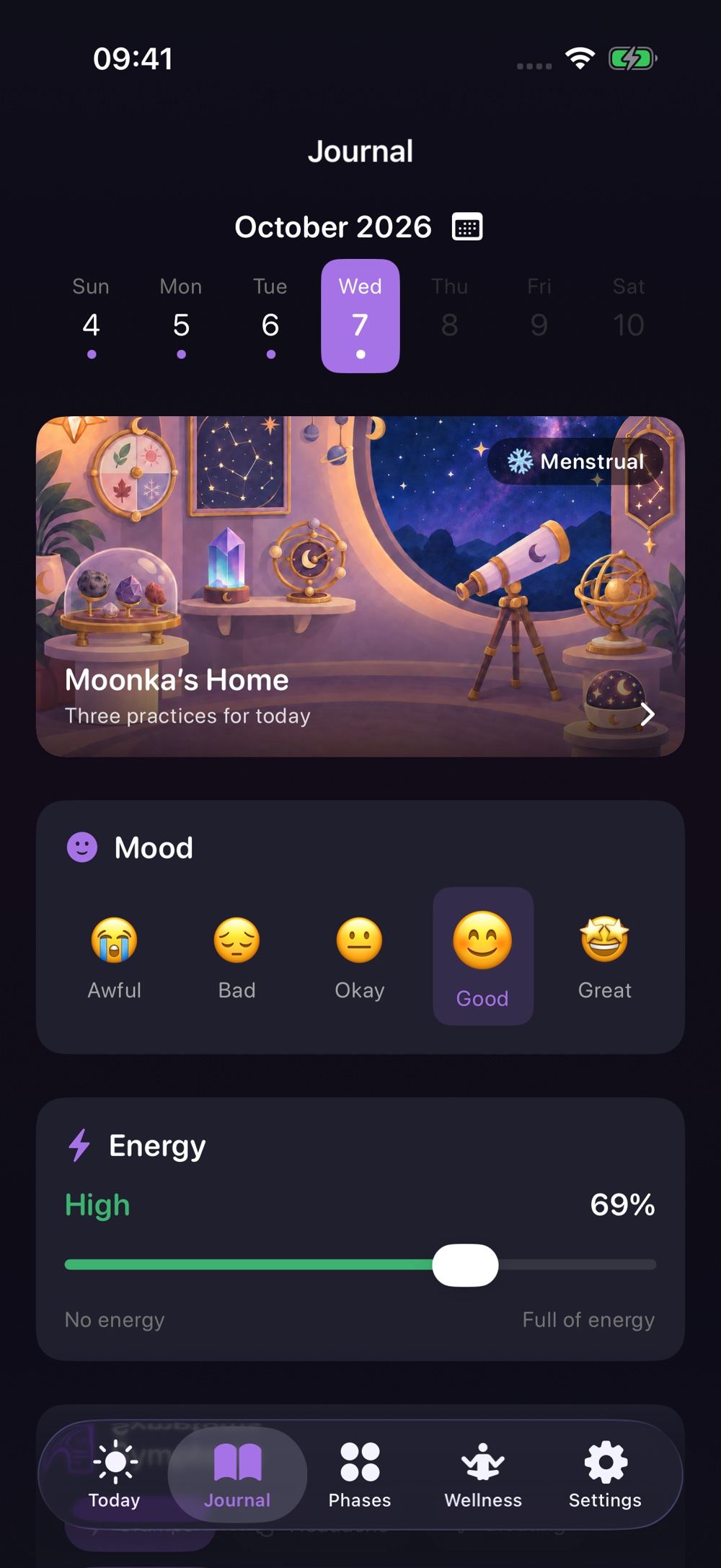
A short daily entry helps you notice your own patterns. Fill in only what you feel like sharing with yourself.
1. Check the day
Choose today or a past date in the strip or calendar. Your entry belongs to that day.
2. Note how you feel
Choose a mood and move the energy slider. Use your own sense of how you feel; there is no correct answer.
3. Add symptoms
Tap the relevant labels. Use Add to create your own symptom. Tap a selected label again to unselect it.
4. Save your observations
Add a short note if you wish. After editing, tap Save and wait for confirmation. You can edit a past entry.
How you feel
Notice your own rhythm
Charts bring together your mood and energy entries. They become more useful as your observations grow.
1. Find your charts
Scroll down in Today or Journal to the trends, then open the detailed view.
2. Choose a period
Switch between 1 and 3 months in the details. Compare entries by date and by cycle phase.
3. Explore one day
Tap the chart or use the date selector. Check that day’s mood, energy and phase.
4. Look for patterns
For example: do low-energy days coincide with poor sleep? Compare the chart with your notes, rather than someone else’s norms.
Your cycle
Four seasons within you
Seasons help you remember the phases. How you feel may differ from the description, and that is worth recording.
Winter · menstrual
Shown in ruby red in the app.

Spring · follicular
Shown in green in the app.

Summer · ovulation
Shown in amber in the app.

Autumn · luteal
Shown in purple in the app.

Your cycle
Ideas you can choose
Open Phases, select a season and explore whatever interests you today.
Workouts
Browse the suggested types of movement and their explanations. Choose an intensity that feels right.
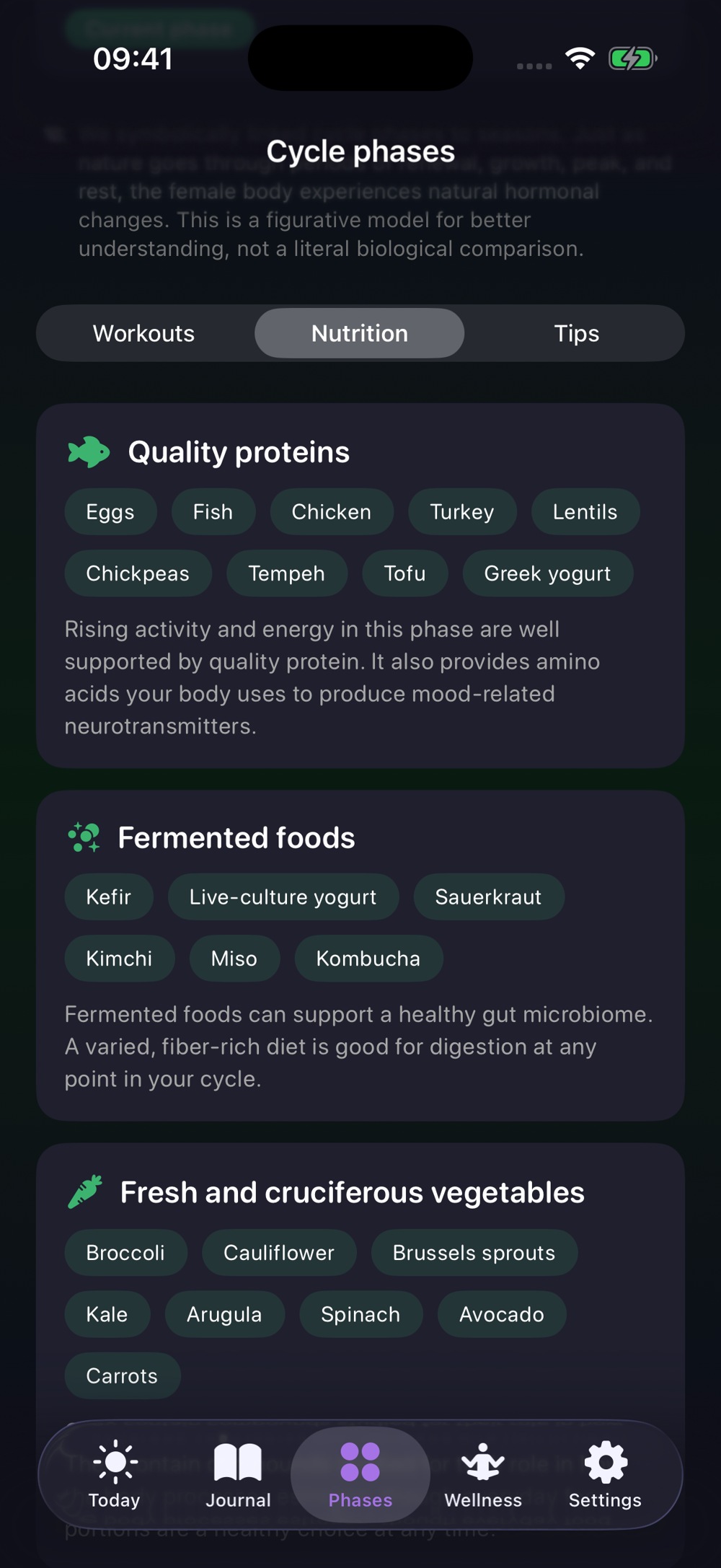
Nutrition
Explore food groups and examples. These are ideas for variety, not a required diet.
Tips
Find ideas for work, relationships and self-care. Choose one that suits your day.
Explanations and sources
Tap the phase heading for details. Open the sources at the bottom of sections. Explore ovulation and fertility forecasts from Today.
Contraception
Your method, your entries
Moonka helps you keep a record of contraception use. You enter your schedule according to your method’s instructions.
Where to add it
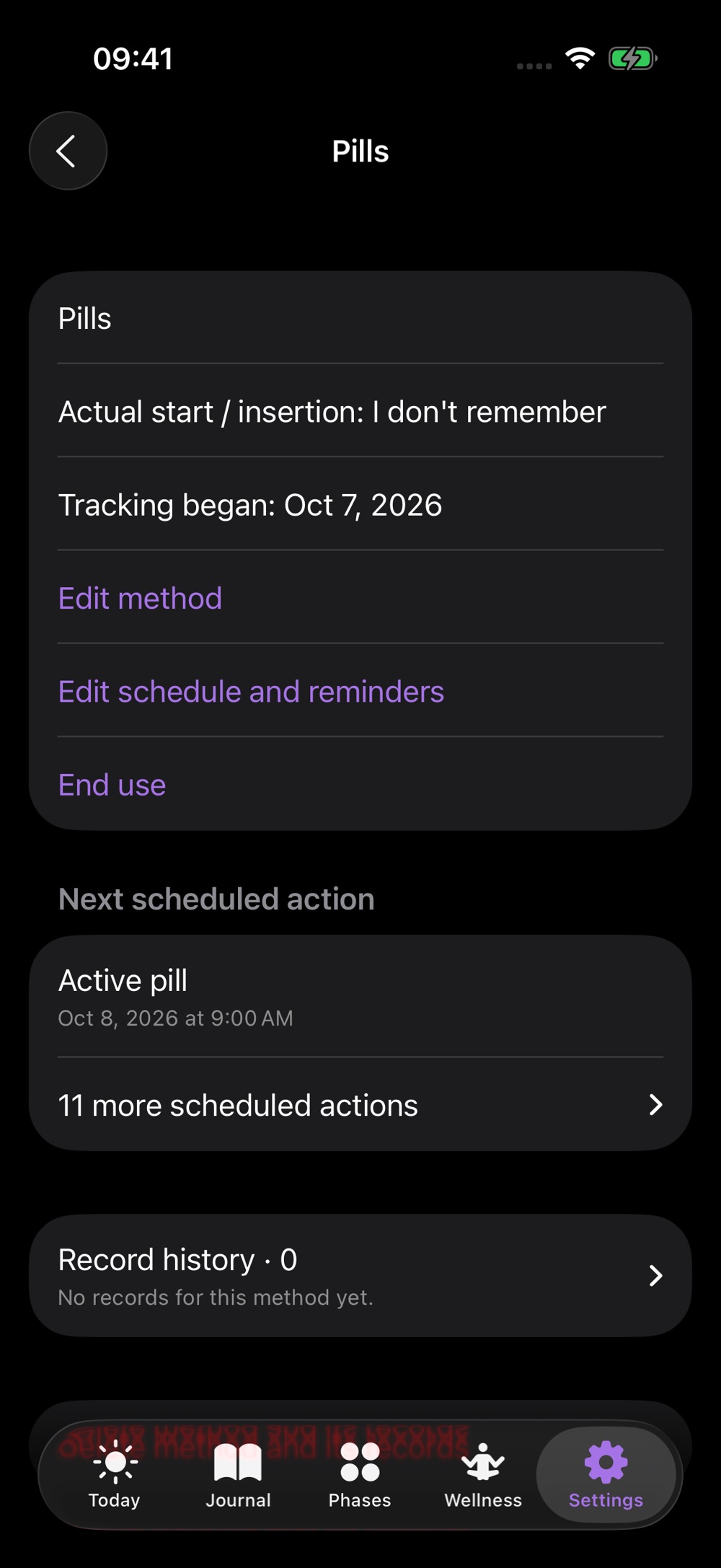
Open Settings → Contraception → Add method. The card in Journal also takes you to setup.
What to enter
Choose a method, name and note. Enter the actual start date if you remember it. The date you started tracking is stored separately.
Available methods
Pills, patch, vaginal ring, hormonal or copper IUD, implant, injections, condoms and another method.
Different ways to track
For condoms, record use and its date. Set up actions for scheduled methods; keep important dates for long-acting methods.
Contraception
A schedule without guesswork
An entry records what you did. A reminder records what was planned. They are different things.
1. Set up your schedule
For pills, enter active days, placebo or break days, the pack start and time. For other methods, set the relevant action dates.
2. Record the action
In the day card, mark an action completed or skipped. Check the actual time. You can edit or undo a mistaken entry.
3. Review the history
Open the method, expand Record history and select a month. You can also see the next scheduled action.
4. Update tracking carefully
Edit the method and schedule, or set a change for a later date. Ending use preserves its history; deleting the method removes its data.
Moonka’s home
Come in, I am home
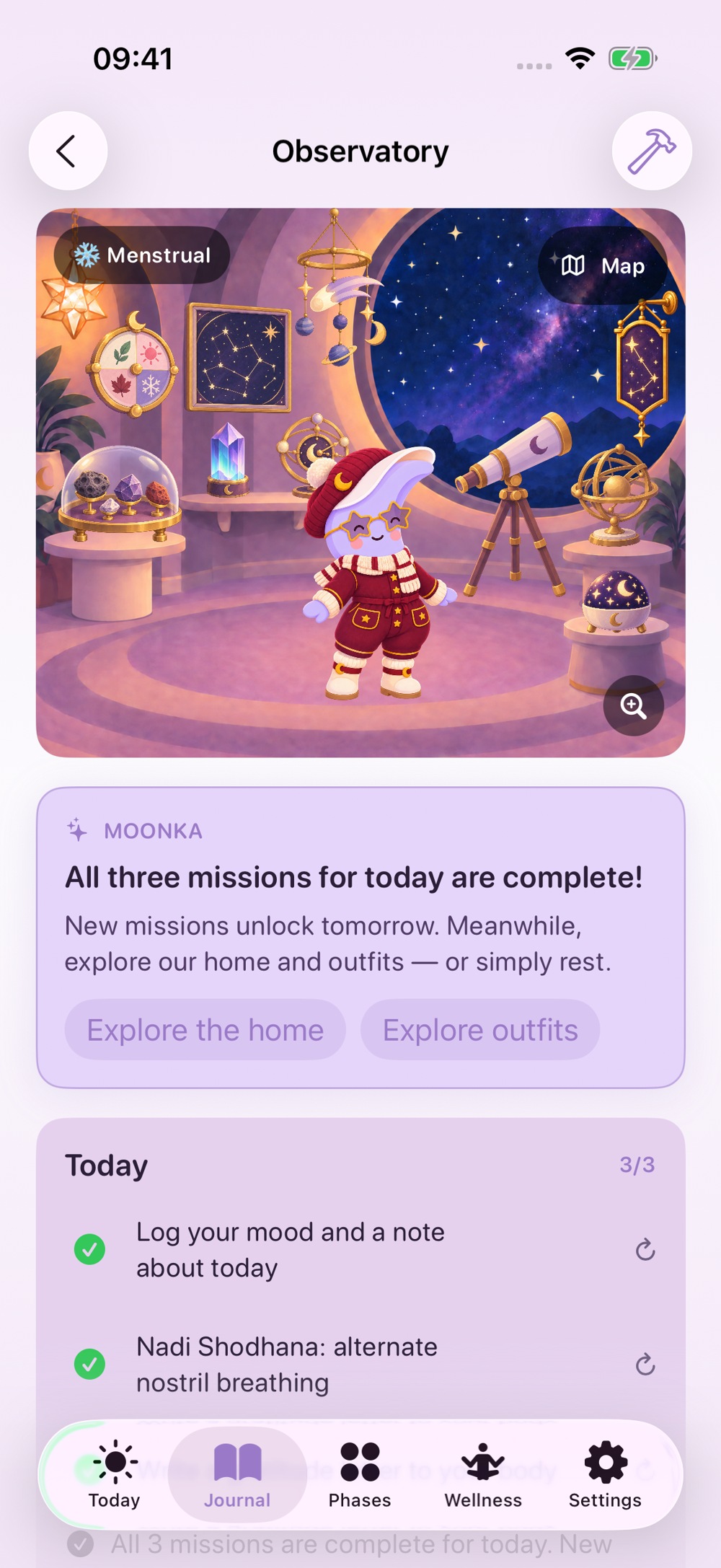
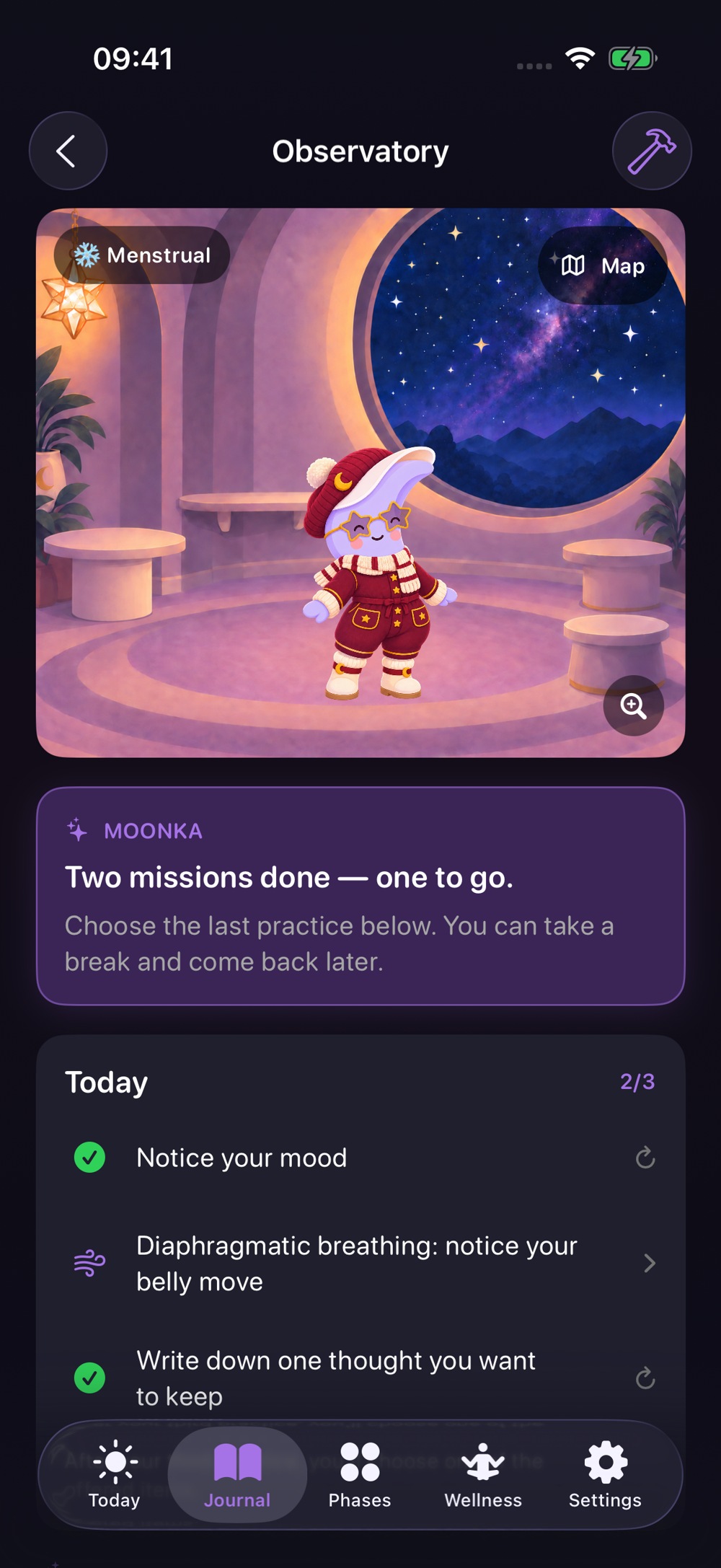
Tap Moonka’s home in Journal. Here, small practices gradually fill the rooms with objects.
Look around
Zoom with gestures or the on-screen controls, move around the scene, and use reset to return to the full view.
Tap an object
Look closely at an unlocked object and read its description. Find it again in the collection below.
Open the map
Use the Map to move between available rooms. A locked room shows what you need to unlock before it.
Look through the window
There are details and interactive objects to discover. Explore at your own pace, without having to finish anything.
Moonka’s home
Three little actions
Moonka offers practices based on your answer about your energy. You can start with the smallest one.
1. Choose your energy
Tap A little, Enough or A lot. You can skip the question if you do not want to answer.
2. Open a listed mission
Tap an action in Moonka’s home. The app opens the relevant entry, breathing exercise, meditation or other practice.
3. Complete its requirement
Save the entry or finish the required practice. Opening the screen alone does not count as completion.
4. Choose an object
After three completed missions, you can choose a reward. You can claim one object per day; repeating a practice does not earn another reward.
Moonka’s home
A collection of little comforts
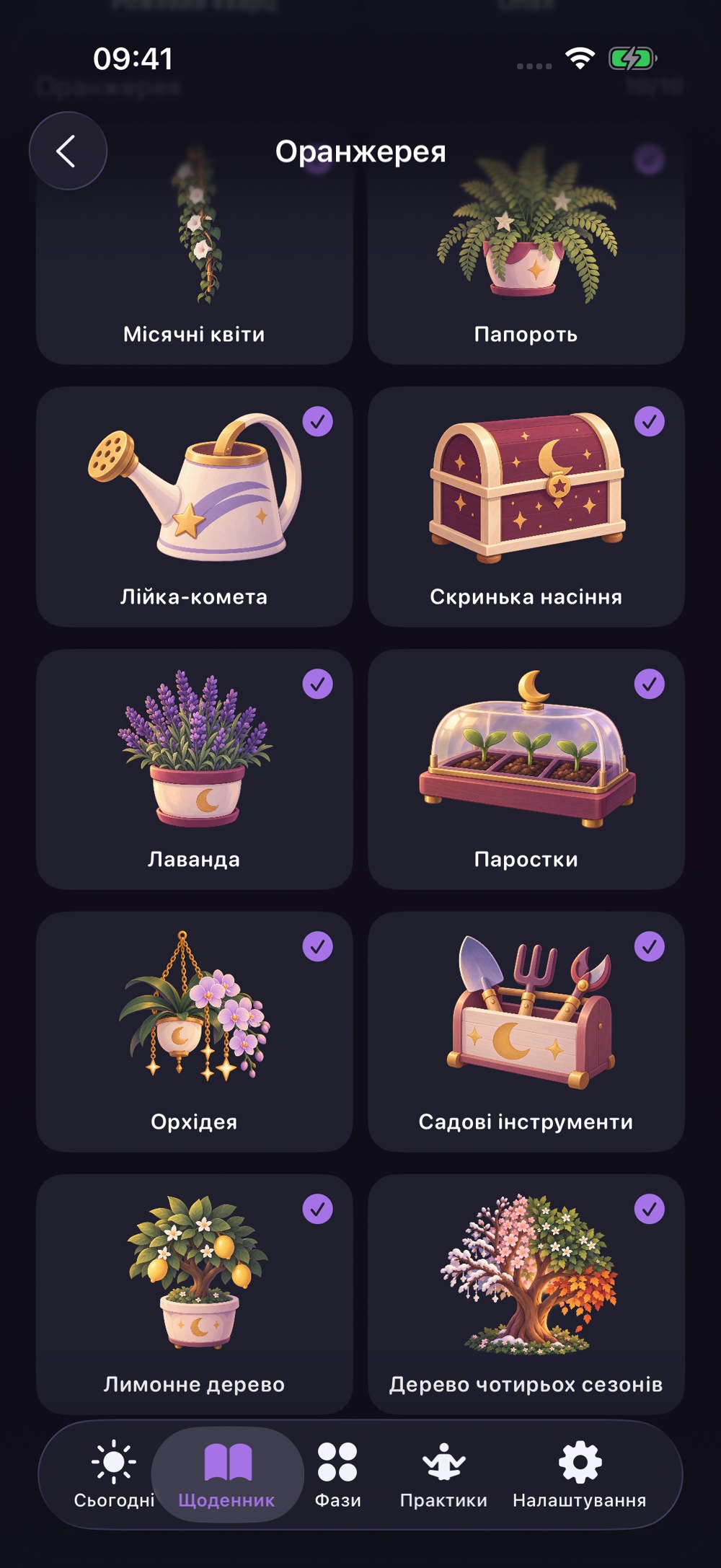
Objects stay in your collection. Seasonal looks and accessories let you personalise Moonka.
40 objects in four rooms
Each room holds 10 objects. Collect 10 out of 10 to open the next room.
Explore your finds
Scroll to Item collection and tap an unlocked object. Locked objects show a hint about access.
Visit the seasonal wardrobe
Browse seasonal and extra looks, plus accessories. Choose from available items; locked items show their unlock requirements.
After the full collection
The rooms remain your living home. Keep practising and exploring even after all the objects are collected.
Self-care
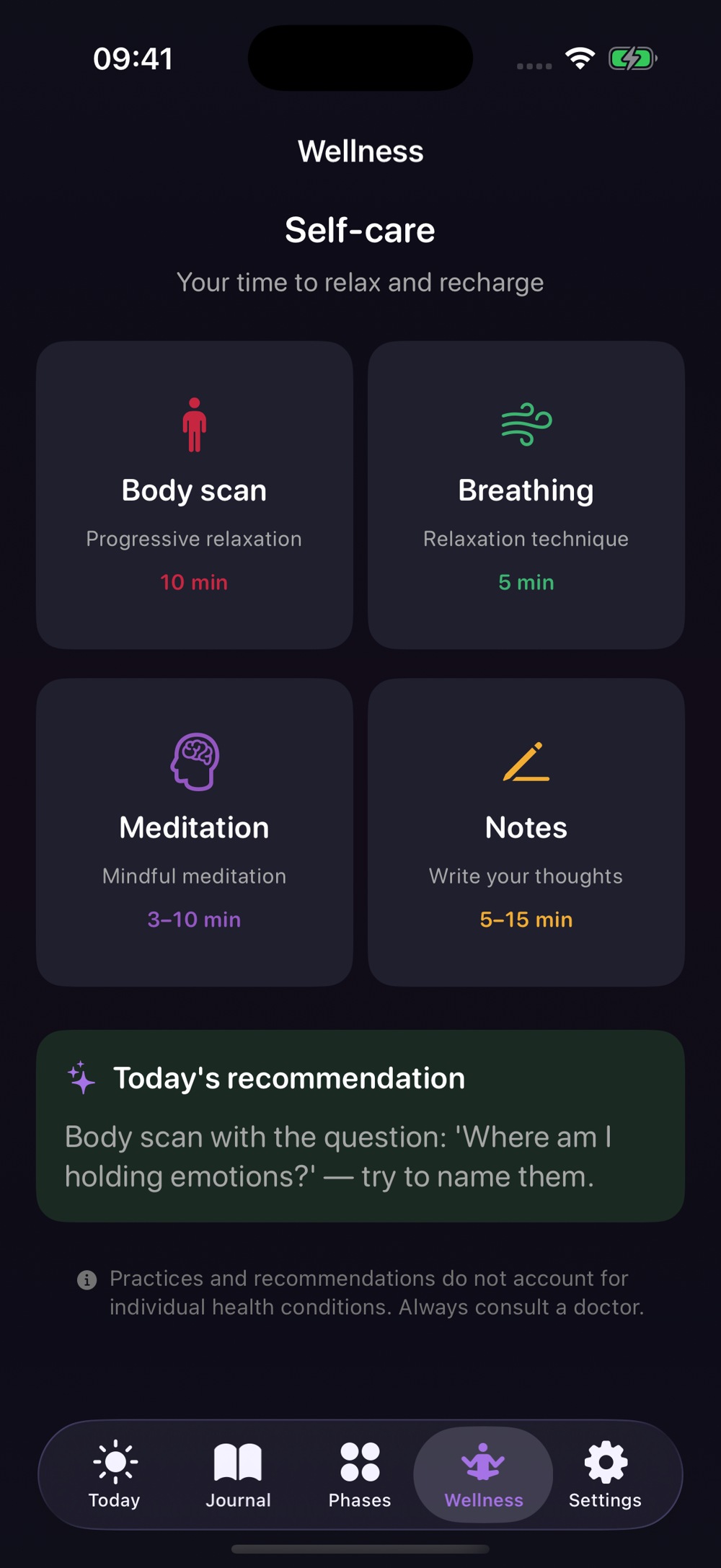
What feels right now?
Wellness has four starting points. Choose one because you want to, rather than because you have to.
Breathing
For a short pause with a clear rhythm. Explore the guide and an animated practice.
Meditation
For a few minutes of attention to yourself. Choose your duration and sound.
Body scan
For noticing sensations in different parts of your body, one step at a time.
Notes
For thoughts that want a place to land. Find personal entries and gratitude letters; the daily recommendation offers one idea.
Self-care
One breath at a time
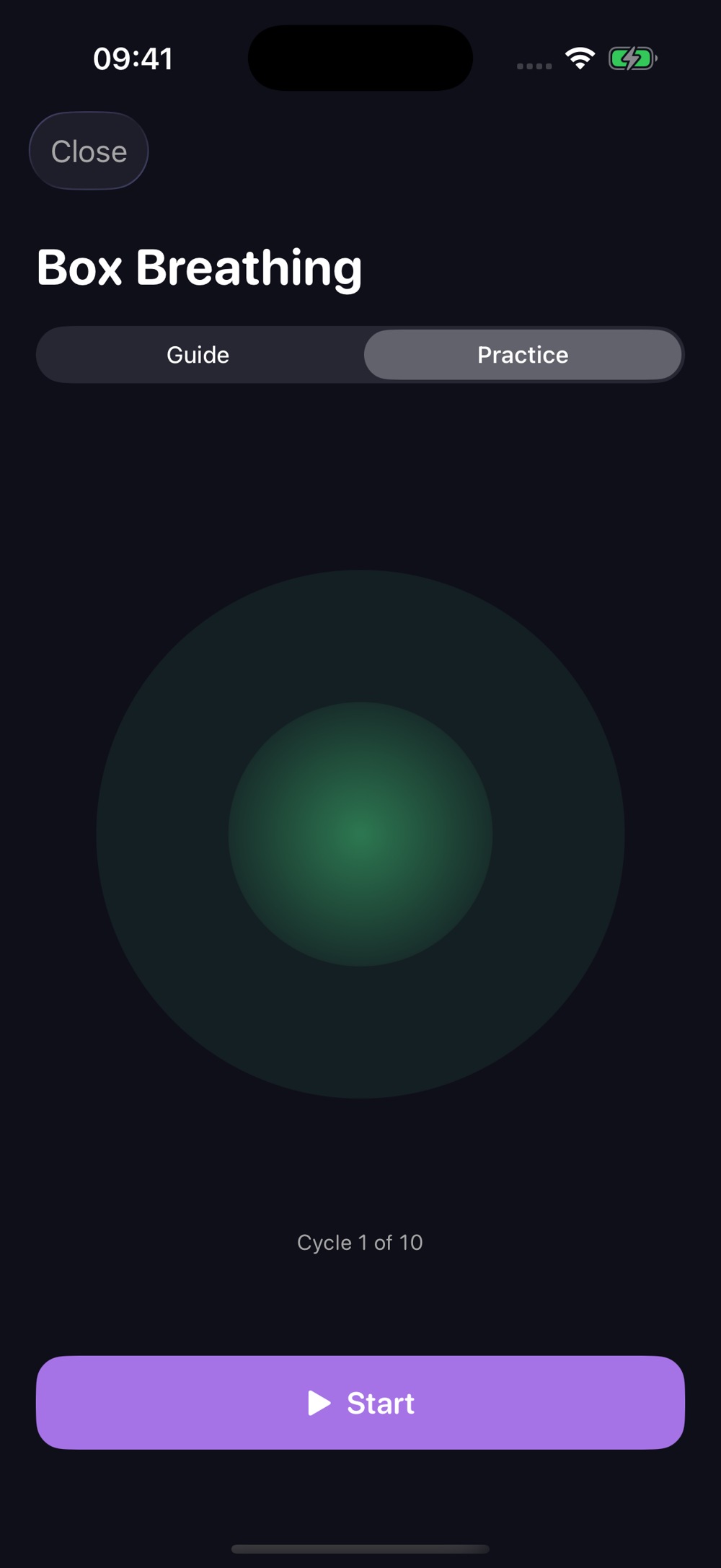
Open Wellness → Breathing and choose a technique. You can read the Guide first.
Four techniques
Box breathing, 4-7-8, diaphragmatic breathing and alternate-nostril breathing.
Start a practice
In Practice, tap Start. Follow the inhale, exhale and hold labels, rather than just the moving circle.
Choose a comfortable pace
Timing settings let you change the inhale, hold and exhale lengths, and restore the original rhythm.
Finish at your own pace
Use the available stop and repeat controls. For a mission, follow its completion requirement.
Self-care
A few minutes with yourself
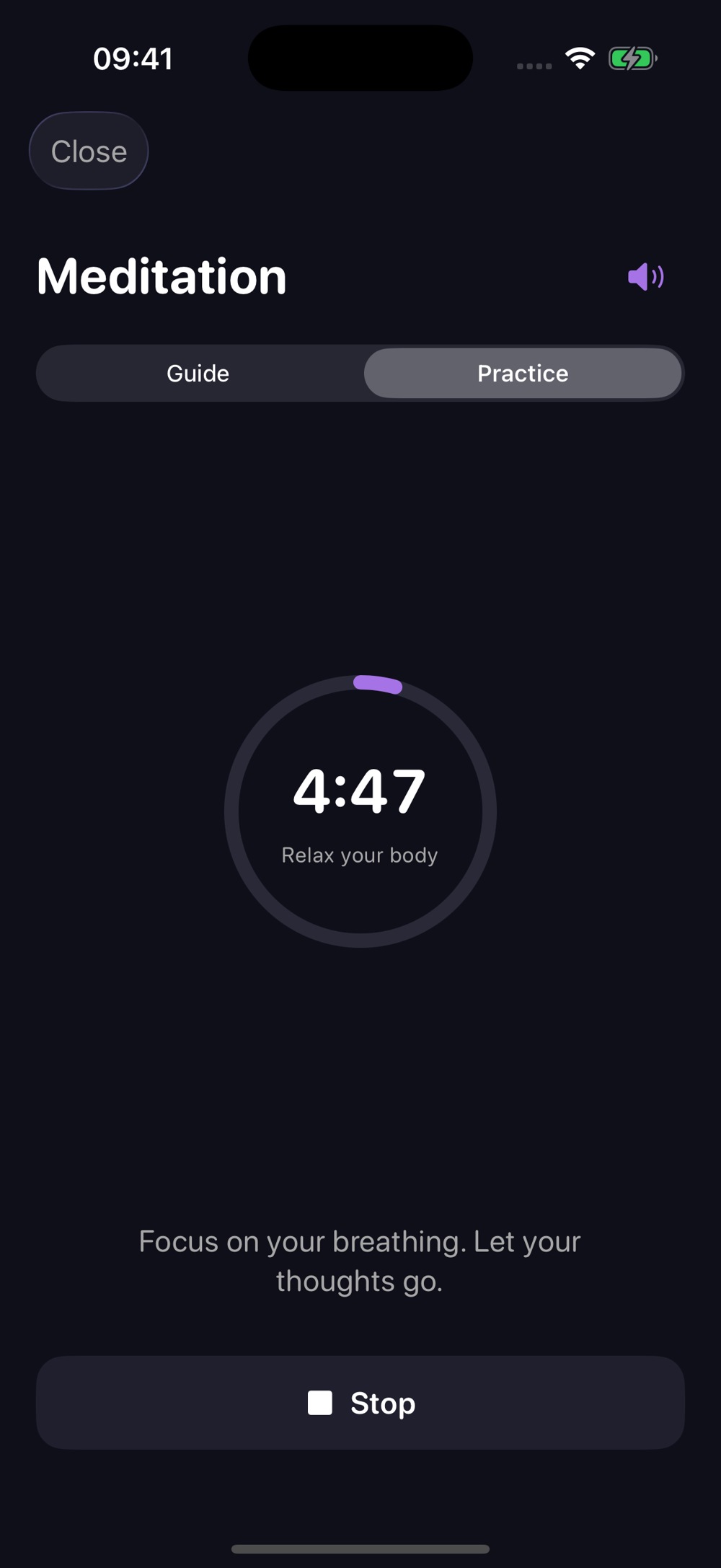
Open Wellness → Meditation. The Guide explains how to begin without special preparation.
1. Choose the duration
A regular practice offers 3, 5 or 10 minutes. A mission may require a specific duration.
2. Start the timer
Tap Start, sit comfortably and follow the simple on-screen prompts.
3. Choose your sound
Tap the sound icon to turn the background music on or off.
4. Finish calmly
Tap Stop or wait for the timer to end. Mission credit requires completing its specified duration.
Self-care
Gentle attention to your body
Wellness → Body scan → Practice. The session has 12 steps and lasts about 10 minutes.
1. Read the guide
Review the description and precautions. Choose a comfortable position where you can remain at ease.
2. Tap Start
Each screen shows a body area and a short written instruction. Notice sensations without needing to change them.
3. Set your pace
Pause, resume, move to the next step or return to the previous one.
4. Finish the practice
At the end, tap Finish. For a mission, check that the app has recorded completion.
Self-care
Your thoughts can stay here
Open Wellness → Notes. There are two separate spaces: Personal and Gratitude Letter.
Personal entries
Tap the plus button and add a title and text. The daily prompt can help you start, but following it is optional.
Gratitude letters
Choose the tab, tap plus and enter a recipient. You can hide the template prompts. The letter stays in the app and is not sent to anyone automatically.
Search and edit
Search entries by text, open them and add more. Changes save while you edit; check confirmation before leaving. Deletion requires a separate action.
Where are daily notes?
A note in Journal belongs to a wellbeing date. Notes in Wellness are separate personal entries and letters.
Make it yours
Reminders at your time
Choose the notifications you need and keep sensitive details out of view.
General reminders
In Settings, turn notifications on and choose a time. Discreet mode replaces sensitive details with neutral text.
Fertile window
There is a separate switch for predicted fertile-window reminders. Without cycle data, prediction reminders cannot be scheduled.
Method reminders
In contraception settings, separately enable method reminders, discreet text and pill reminder repeats if needed.
No notifications?
Check permission in iPhone Settings → Notifications → Moonka. Also review Focus modes and iOS notification summaries.
Your private space
Your entries under your control
Personal entries are stored locally on your device. You can also protect the app from being opened by someone else.
Protect access
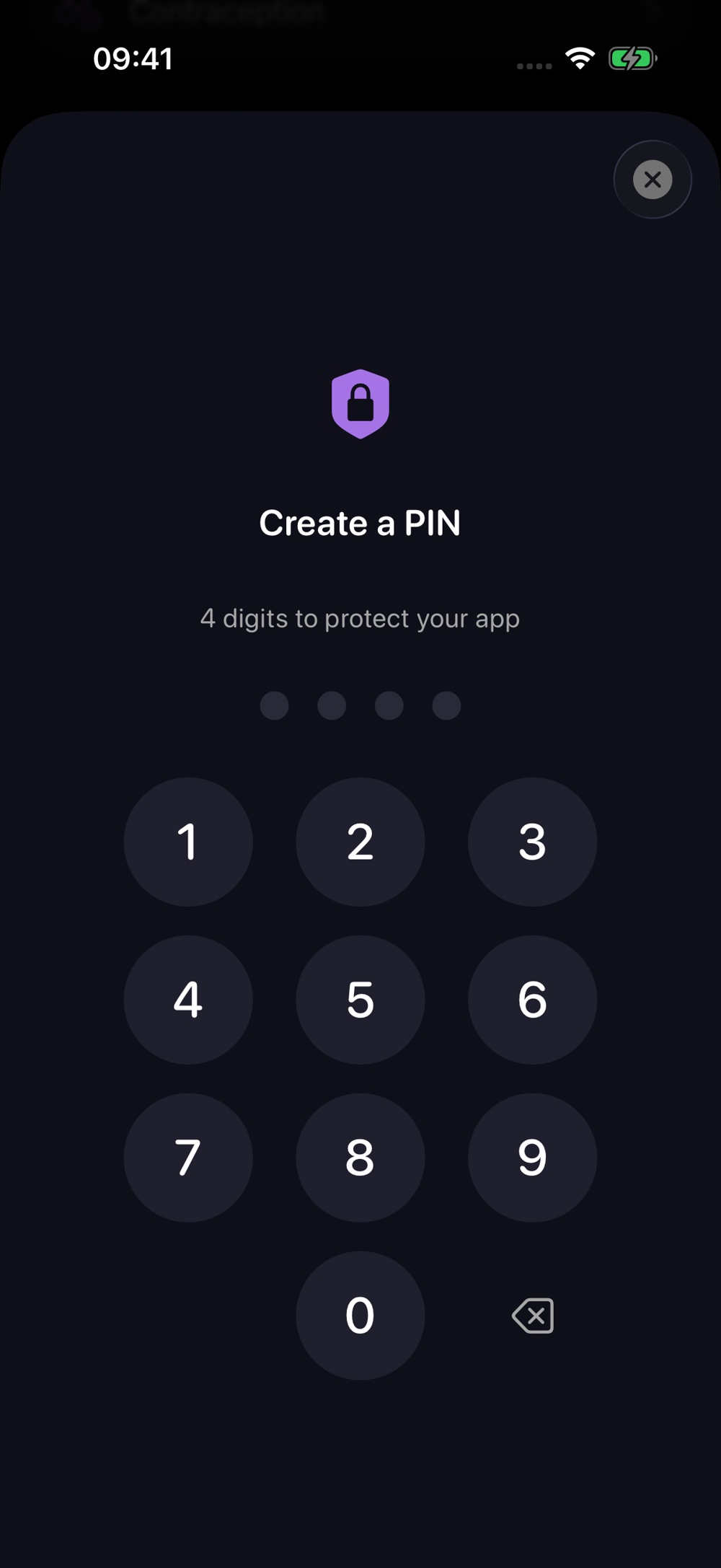
Find the security section in Settings and create a PIN. Biometric access is available on compatible devices.
Keep your PIN safe
Remember your code and avoid leaving it in an unprotected note. Turning off the lock requires authentication.
Check before sharing
If you create a report, review its contents before choosing a recipient.
Delete thoughtfully
Delete all data removes personal entries and Moonka’s progress. Save any needed report first. A PDF cannot restore the entry database.
Share if you wish
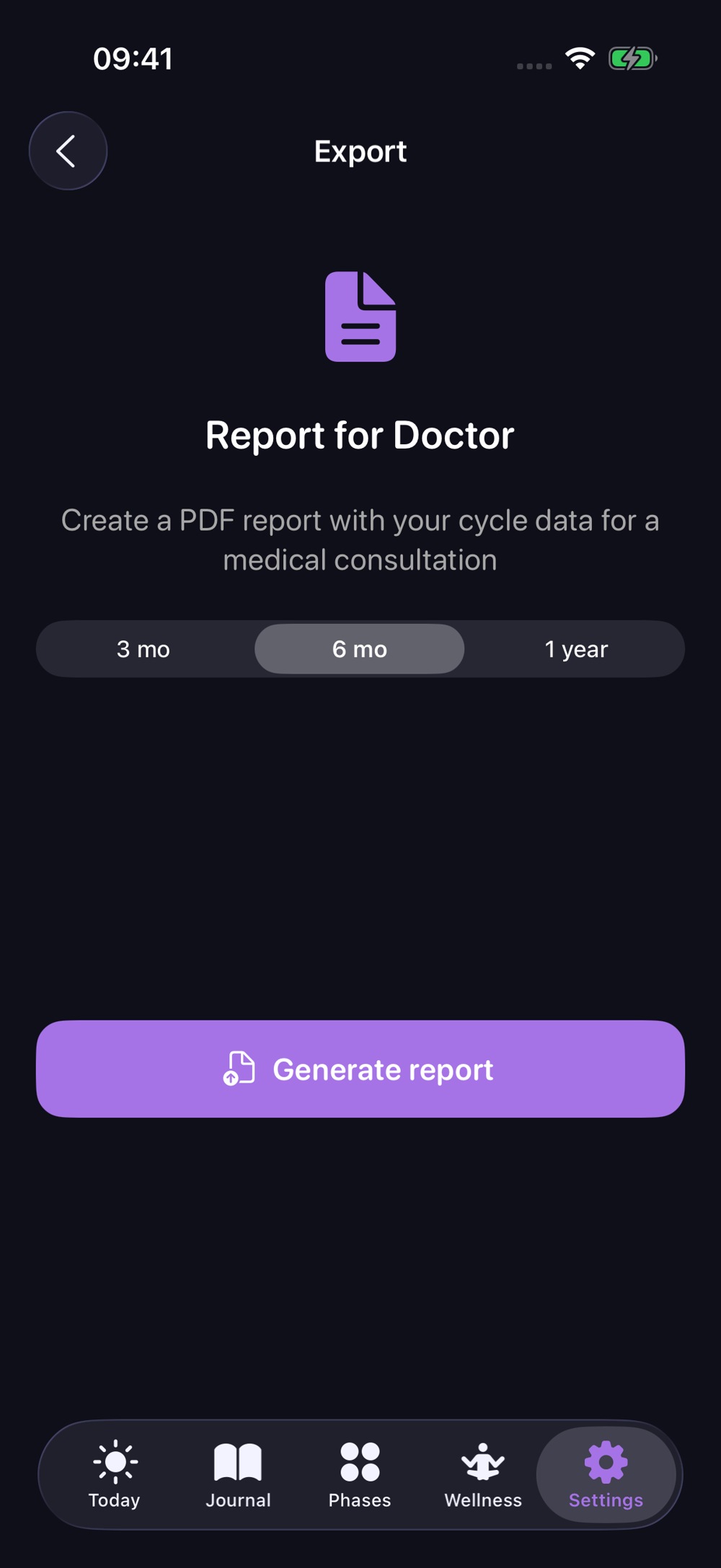
A report for your appointment
Bring recorded observations together in a PDF. Review your history before a consultation.
1. Open report export
Settings → Report for your doctor. This section is near the cycle settings.
2. Choose the period
Select the last 3 months, 6 months or 1 year, then tap Generate report.
3. Review the result
The PDF includes cycle settings, period history, mood, energy and symptoms. Check its dates and period.
4. Save or share
Tap Share in the preview. Choose Save to Files or your preferred way to send it.
By your side
Moonka on your wrist
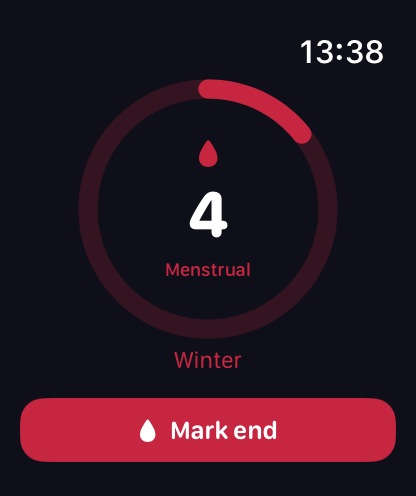
Apple Watch gives you a short cycle overview and lets you record your period without searching for your phone.
1. Open it on iPhone
Finish setting up Moonka and open it on the paired phone. Then open Moonka on your watch.
2. Check the overview
See your cycle day, phase and season. Depending on your data, you may also see a period countdown and fertility forecast.
3. Tap the ring
Read brief information about your phase. The language comes from Moonka’s settings on your phone.
4. Confirm the entry
Use the button to mark the start or end of a period. Check confirmation: a queued action has not yet been saved on iPhone.
Moonka access
A subscription without surprises
The app offers monthly and yearly plans. Full access depends on an active subscription or an available trial offer.
Check before confirming
Review the plan, price in your currency, billing period and trial terms. Apple shows the current terms.
Trial access
If your account is eligible for an offer, the screen shows its length and the price afterwards. A repeat trial may not be available.
Restore a purchase
If you have already paid for access, tap Restore purchase using the same Apple Account.
Manage or cancel
Open iPhone Settings → your name → Subscriptions → Moonka. Deleting the app or its data does not cancel a subscription.
Make it yours
Little conveniences
Set up Moonka in the way that makes returning feel easy.
Language and theme
Ukrainian, English, Romanian and Russian are available. Choose a dark or light theme in Settings.
Cycle settings
Update the last period date and your usual cycle and period lengths. Check the calendar and forecast after changing them.
Your own names
You can choose your own names for the period and fertile window. This changes the wording, not the medical meaning of the forecast.
Tips and documents
About → Show tips again reopens the short tour. Find the version and music licences there too. Privacy, terms and the disclaimer are available in Settings.
A habit without pressure
Your everyday rhythm
Use Moonka as often as it helps you. Missing a day does not take away the value of previous entries.
When you have a moment
Check the date and record your mood and energy. Symptoms and one short note add context.
When you want a pause
Open one practice or Moonka’s home. For collection progress, start missions from Moonka’s list.
Now and then
Explore monthly trends, reread a few entries and check whether your reminder time still suits you.
When you need help
If an entry did not save, retry. If access is not working, restore your purchase. Ask a professional about health concerns and support about the app.